
How guests and members pay when they book
On this page
Know what a guest or member sees when they book a court online and pay, so you can answer questions at the desk.
Note: Card payments are live. The charge goes to your club's Stripe account.
Before you start
- Your Stripe account shows Payments enabled. See Connect Stripe to take payments.
- You've saved prices and turned on Public for at least one court in Settings > Booking.
- For guests, Accept public bookings is on in Settings > Booking.
What a guest does
Guests book from your booking page (the Booking page link in Settings > Booking) without logging in.
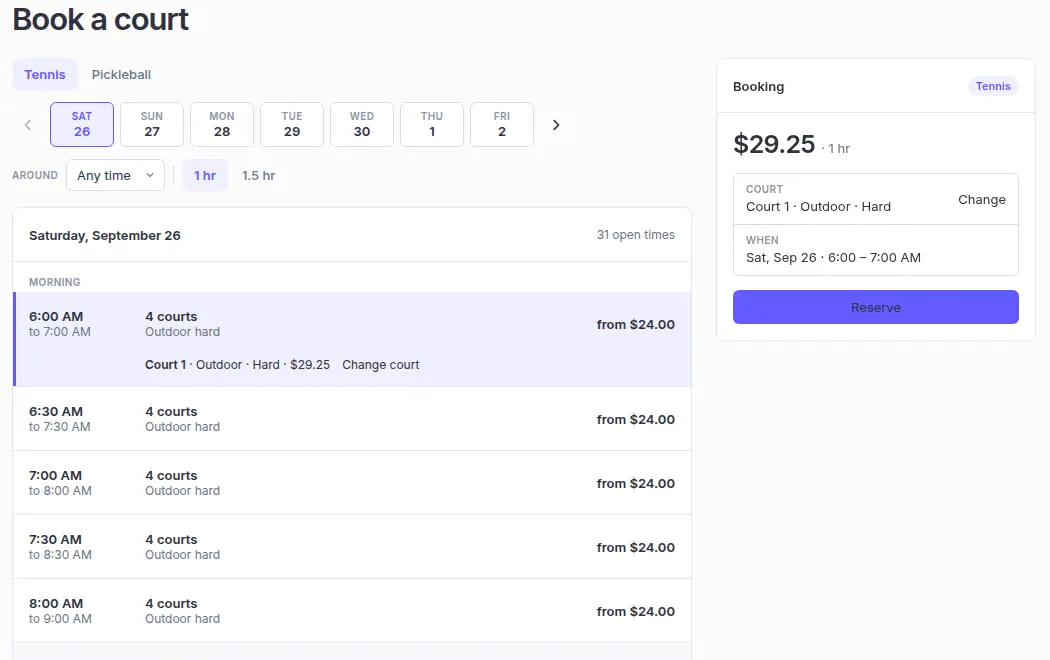
- Choose a day, a time under Around, and a booking length.
- Choose an open time. Tennisbook picks a court and shows the total. If more than one court is open, they can select Change court.
- Select Reserve.
- Under Contact, enter Name and Email. Phone is optional, for day-of changes.
- Select Pay and the amount, for example Pay $40.00.
- Pay by card on the Stripe page.
When payment goes through, they see Your court is booked and a confirmation email is sent to the address they entered. They can select Add to calendar.
What a member does
Members (Tennisbook calls them players) sign in and select Book a court in the sidebar. The steps are the same as for guests, with two differences:
- They don't fill in contact details. The page says Payment uses the email on your profile. If their profile has no email, they see Add an email on your profile before booking. Add it from their record on Players with Edit details.
- If you've turned on Pay at the club, they can choose Pay at the club instead of paying online.
If a payment doesn't go through
| What the guest or member sees | What it means |
|---|---|
| Payment was declined | No booking was made. They can select Retry payment while the time is held, or Cancel and pick another time. |
| This time is no longer held or Payment was cancelled | No booking was made. They can select Pay again or Choose another time. |
| Finish payment | Payment isn't finished. They select Continue to payment to complete it. |
| The club needs to refund this payment | The payment went through but the booking couldn't be kept. See Refund a payment. |
Where online bookings show up
Online bookings appear on your Schedule as name · Public reservation with a badge such as Paid, Due at club, or Held (checkout in progress).