
Set booking rules and rates
On this page
- Before you start
- Who these settings apply to
- Open the Booking settings
- Choose booking lengths
- Choose when bookings can start
- Set how far ahead people can book
- Set how close to start time online booking closes
- Set your club price
- Price a court or sport differently
- Choose which courts can be booked online
- Save your changes
- Set who can book and when staff can cancel
- Turn on public booking for guests
- If something goes wrong
- Next steps
Choose how members and guests book courts online, from booking lengths and start times to how far ahead they can book, set your hourly court prices, and choose who can book online and when staff can cancel.
Before you start
- You need to be club staff. Admins, Front desk, and Coach users can all change booking rules and prices.
- Set your opening hours in Settings > Club. Online booking only offers times inside them. See Set your club hours.
- Add your courts first. The pricing table lists every active court. See Add and configure courts.
Who these settings apply to
The rules and prices on this page apply to everyone who books online:
- Guests who book on your booking page without logging in, when Accept public bookings is on.
- Members who sign in and book from Book a court, whether Accept public bookings is on or off. Members only see courts and sports that are switched to Public and have a price.
They don't apply to bookings your staff make from the Schedule. Tennisbook doesn't collect payment for those, so charge for them at your desk.
Online booking also needs your Stripe account set up. Until it shows Payments enabled, guests and members see Checkout unavailable. See Connect Stripe to take payments.
Open the Booking settings
- Select Settings (the gear at the bottom of the sidebar).
- Select Booking.
The page has Accept public bookings, Booking rules, Pricing, and Online payments, saved together with Save settings. Below them, Members & staff has its own Save button.
Choose booking lengths
- Under Booking rules, find Booking lengths.
- Select each length you want to offer: 30 min, 60 min, 90 min, or 2 hr. Select a length again to remove it.
At least one length must stay selected. New clubs start with 60 min only.
Tip: Many clubs offer 60 min and 90 min for singles and doubles, and 2 hr for long doubles sessions.
Choose when bookings can start
The line under the lengths reads Bookings start on the hour and half hour (or on the hour).
- Select Change.
- Choose On the hour or On the hour and half hour.
- Select Done.
Tennisbook greys out a start option that doesn't fit the lengths you offer. For example, if you offer 90 min, On the hour is greyed out with a note that 90 min bookings can't start only on the hour.
Set how far ahead people can book
- Find Book up to [ ] days ahead.
- Enter a number of days, from 0 to 365.
New clubs start at 14 days.
Set how close to start time online booking closes
- Find Online booking closes [ ] before start.
- Choose at start time, 30 minutes, 1 hour, 2 hours, 4 hours, or 1 day.
New clubs start at 1 hour. After this point, members and guests can't book that slot online, but your staff can still book it from the Schedule.
Set your club price
Prices are per hour. Members and guests pay for the length they book, so with a club price of $40, a 90 min booking costs $60.
- Under Pricing, enter your Club price in dollars per hour.
- Check the pricing table. Each court gets a row, and a shared tennis and pickleball court gets one row for each sport. The columns show the total price for each booking length you offer.
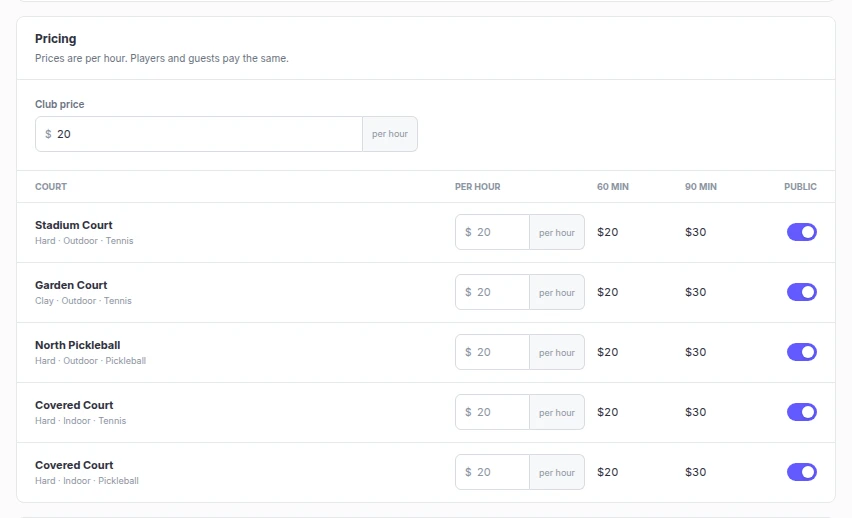
Price a court or sport differently
Use this when one court costs more, such as an indoor or stadium court, or when pickleball is priced differently from tennis on a shared court.
- In the pricing table, find the row.
- Type the hourly price in that row's Per hour field. The field shows your club price in grey until you type over it.
- To go back to the club price, select Use club price in that row.
The totals in the pricing table are what members and guests pay at checkout. Tennisbook doesn't charge more at busy times.
Choose which courts can be booked online
Each row has a Public switch. When it's off, the row shows Closed to guests and that court (or that sport on a shared court) isn't offered online to anyone, members included.
- Turn on Public for each court and sport you want bookable online.
- Leave it off for courts you keep for coaching, staff use, or walk-ups.
Note: Courts start closed to online booking until you save prices for them.
Save your changes
- Select Save settings at the bottom of the page.
- Look for Booking settings saved. The footer status changes to Saved.
If you try to leave the page with unsaved edits, Tennisbook asks Discard unsaved booking changes? so you don't lose them by accident.
Set who can book and when staff can cancel
Members & staff, at the bottom of the page, has rules for signed-in members and your staff. Only Admins can change them. Front desk and Coach users see the cancellation cutoff but can't edit it.
- Who can book online: Open to everyone lets members and guests book online.
- Pay at the club: lets signed-in members reserve without paying online. See Let members pay at the club.
- Cancellation cutoff: how close to start time members can cancel online. Staff can always cancel from the Schedule; inside the cutoff, the cancel dialog says Inside the 4-hour cutoff (for a 4-hour cutoff). A change applies to bookings made after you save.
- Fee policy: select + Add a fee policy to charge late cancels and no-shows the full price, a fixed amount, or nothing, and to turn off a player's online booking for a number of days after a number of strikes. Only a Player request cancel inside the cutoff counts; weather, court issues, staff errors and courtesy cancels are never charged. A fee comes out of the player's account credit first, and the rest is collected at check-in. Staff can still book a player whose online booking is off, and Turn back on in Players restores it.
- Change a setting under Members & staff.
- Select Save. The status changes to Changes saved.
Turn on public booking for guests
When your rules and prices are ready, you can let non-members book and pay without logging in.
- Under Accept public bookings, turn on the switch.
- Select Save settings.
- Under Booking page, select Copy link and add the link to your club website. Select Open to see the page as a guest does.
If you see Guests can't pay until payments are set up., select Payment settings and connect Stripe first. To turn on public booking, you need at least one price and at least one court set to Public.
If something goes wrong
| Message | What to do |
|---|---|
| Enter a club price | Fill in Club price before saving. |
| Choose at least one booking length | Select a length under Booking lengths. |
| Add at least one price before accepting public bookings | Set a club price or a row price. |
| Open at least one court to accept public bookings | Turn on Public for at least one row. |
| Settings changed elsewhere. Your edits are still here. Review and save again. | Someone else saved Booking settings. Check your edits and select Save settings again. |
| Changes here need a recent sign-in. | Select Confirm it's you, sign in again, then save. |
Next steps
- Invite members and staff so members can sign in and book.
- Connect Stripe to take payments so online bookings can be paid.
- Let members pay at the club
- Add and configure courts